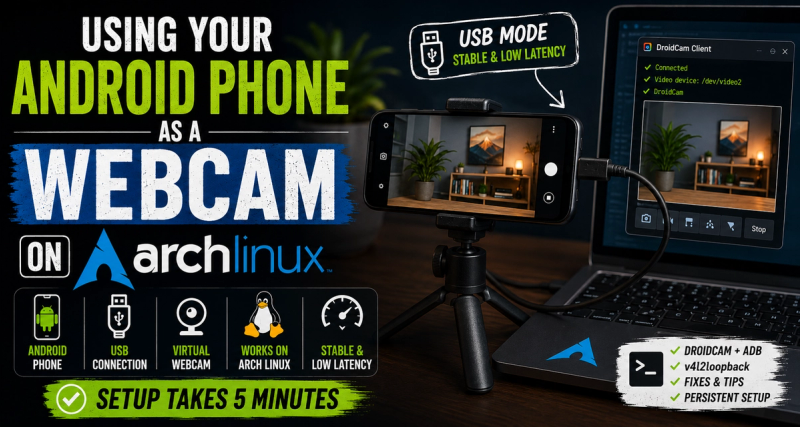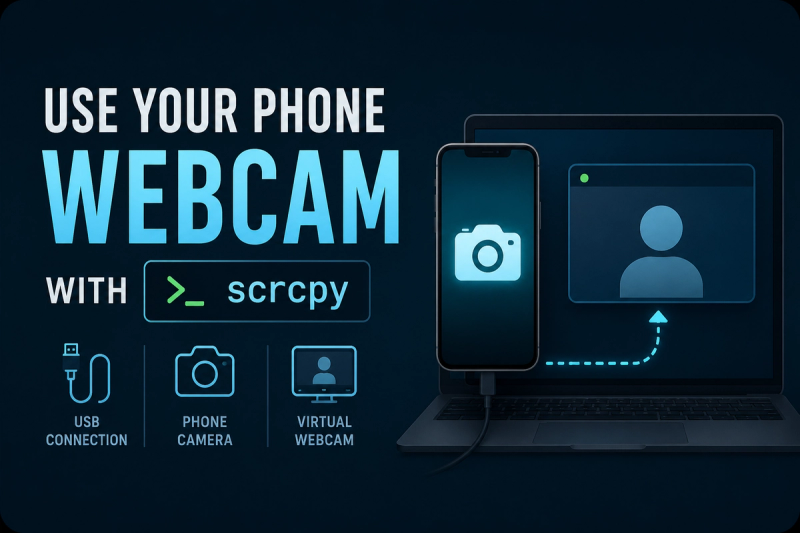

A while back I wrote about using DroidCam after my laptop's webcam died. It worked, and it still works. But since then I've started using scrcpy daily for screen mirroring, and it turns out scrcpy can do the webcam thing too, without installing a separate app on the phone.
If you already have scrcpy set up, this is the faster path.
The Tool: scrcpy
scrcpy is normally known for mirroring your Android screen to your PC with low latency, no root required. What's less talked about is that recent versions added a --video-source=camera mode. Instead of streaming the screen, it streams the phone's camera feed, and you can pipe that into a v4l2loopback device just like DroidCam does.
No app to install on the phone. No server running in the background. Just a CLI flag.
Setting It Up
Install scrcpy on your PC:
Load the v4l2loopback module:
Same as the DroidCam setup, scrcpy also needs a virtual video device to write the camera feed into.
sudo pacman -S v4l2loopback-dkms
sudo modprobe v4l2loopback video_nr=2 card_label="Phone Camera" exclusive_caps=1
Enable USB Debugging on your phone:
Settings → About Phone → tap Build Number seven times → Developer Options → USB Debugging.
Connect your phone and run:
scrcpy --video-source=camera --camera-size=1920x1080 --camera-facing=front \
  --v4l2-sink=/dev/video2 --no-playback --no-audio
That's it. /dev/video2 now carries your phone's camera feed, and any app that lists video devices, Zoom, Discord, OBS, will show it.
A Few Flags Worth Knowing
--camera-facing=backswitches to the rear camera if you want better image quality than the front one usually offers.--no-playbackstops scrcpy from also opening a mirror window. Without it, you'll get a live preview window in addition to the camera feed, which is useful for the first run just to confirm the angle, but unnecessary once you know it works.--camera-size=1280x720if 1080p is too heavy for your USB connection or CPU.
DroidCam vs scrcpy
Both land you in the same place, a virtual /dev/video* device. The difference is in the path there.
DroidCam needs an app installed and running on the phone, plus its own CLI client on the PC. scrcpy needs nothing extra on the phone since it talks to it over ADB, which you likely already have if you do any Android development or used the mirroring features.
If you're already running scrcpy for other things, the camera mode is one less tool to maintain. If you're starting from scratch and only want a webcam replacement, either works fine, DroidCam's UI is arguably more plug-and-play for non-technical use.
Final Thoughts
This isn't a replacement for the DroidCam writeup, more of a "turns out you already had the tool" follow-up. If scrcpy is already part of your setup, you don't need a second app just for the webcam use case.
Still works better over USB than Wi-Fi, for the same reasons as before: stable connection, no frame drops, no reconnect hiccups.